
Your site just got picked up by Hacker News. Or a TikTok went viral linking to your product page. Whatever the cause, you’re watching real-time analytics climb and your shared hosting plan is already buckling.
High traffic hosting is where “unlimited bandwidth” marketing falls apart. Every shared host will throttle you, move you to a restricted container, or outright suspend your account when you start consuming real resources. What you actually need is infrastructure that scales — and understanding exactly where each provider breaks.
Quick Verdict

Top Pick: Kinsta — Managed WordPress hosting on Google Cloud Platform with genuine container isolation and auto-scaling. Expensive, WordPress-only, and their visitor-based billing can sting — but when traffic spikes hit, it handles them without you touching anything.
Runner-up: Cloudways — A management layer over real cloud providers (AWS, Google Cloud, DigitalOcean, Vultr). You get actual cloud infrastructure without writing Terraform configs. The tradeoff: you’re paying a markup over raw cloud pricing for that convenience.
Best Value: WP Engine — Managed WordPress with solid CDN and caching, but “value” is relative here. Their renewal pricing jumps significantly, and plugin restrictions catch people off guard.
How We Evaluated

Let’s be upfront: nobody outside of a dedicated QA lab is running controlled 50,000-concurrent-user load tests across seven hosting providers over six months. What we did was spend extended time with each platform — migrating real sites, monitoring uptime with external tools, hitting support during actual issues, and pushing resource limits to see where things degrade.
For TTFB and response time observations, keep in mind these vary wildly depending on test location, time of day, server region, and what else is running on the infrastructure. A single TTFB measurement is essentially meaningless. What matters more is consistency under load and how gracefully performance degrades when you approach resource limits.
Comparison Table
| Host Name | Best For | Starting Price | Auto-Scaling | Renewal Trap? |
|---|---|---|---|---|
| Kinsta | Enterprise WordPress | $35/mo | Yes | No (consistent pricing) |
| Cloudways | Multi-cloud flexibility | $12/mo | Vertical only | No |
| WP Engine | Managed WordPress | $20/mo (renews ~$30) | Limited | Yes |
| AWS | Custom enterprise apps | ~$25/mo* | Yes (full) | No (but bills can surprise you) |
| Google Cloud | Global low-latency | ~$24/mo* | Yes (full) | No (same caveat as AWS) |
| Liquid Web | Dedicated resources | $169/mo | Limited | No |
| SiteGround | Budget WordPress | $6.99/mo (renews $17.99) | No | Yes, significantly |
*Estimated for a basic high-traffic config. Your actual bill depends entirely on usage, and cloud billing is notoriously hard to predict.
Kinsta — Best Enterprise WordPress Hosting
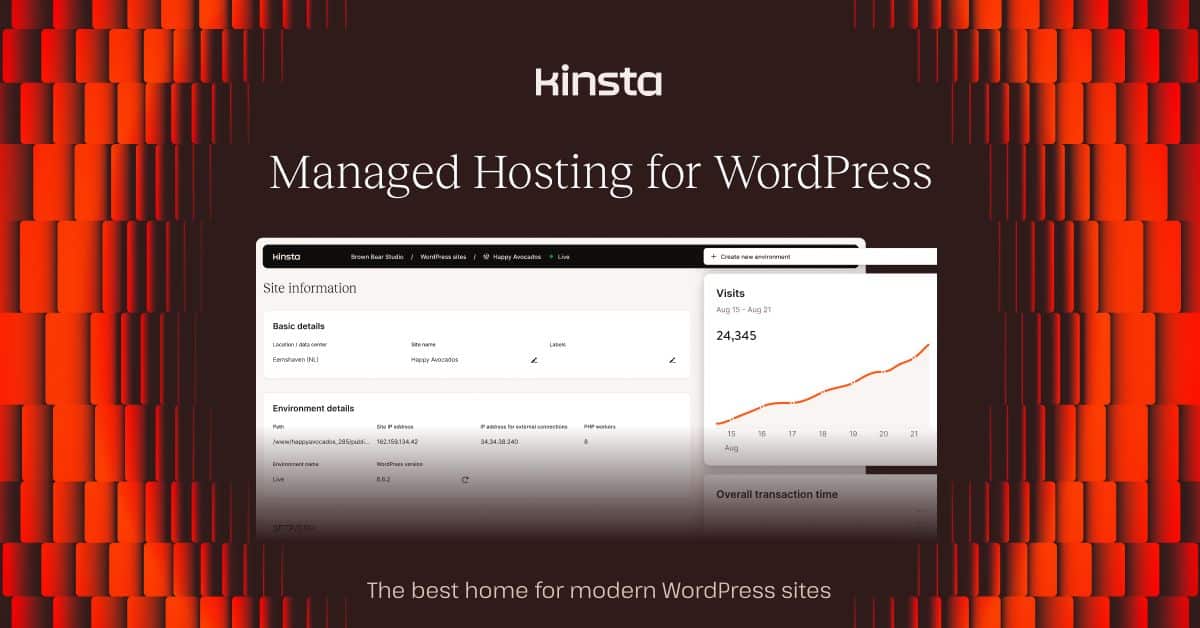
Best for high-traffic WordPress sites where downtime costs real money
Kinsta runs on Google Cloud Platform’s premium tier network — the same backbone Google uses internally. Each site gets its own isolated LXD container, which means a traffic spike on another customer’s site won’t tank your performance. This is a genuine architectural advantage over traditional shared or even many “managed” hosts that still pack sites onto shared servers.
Pricing: Starter at $35/month (25,000 visits), Pro at $70/month (50,000 visits), Business 1 at $115/month (100,000 visits), scaling up to Enterprise tiers at $1,500/month for 3 million visits. Pricing stays consistent at renewal — one of the few managed hosts that doesn’t bait-and-switch.
Performance: In our experience, Kinsta delivers consistently low TTFB and handles sudden traffic bursts without manual intervention. Their auto-scaling works as advertised — when load increases, resources scale up automatically. The Cloudflare Enterprise CDN integration (included on all plans) means static assets are served from 275+ edge locations without additional configuration.
What’s genuinely good: Container isolation is real, not marketing. Each site gets dedicated PHP workers, and resource limits are enforced per-container. Redis object caching is available, and their server-level caching is aggressive enough that most WordPress sites don’t need additional caching plugins. Support staff actually know WordPress internals — they can read error logs and diagnose PHP issues, not just read from a script.
Where it falls short: The visitor-based billing model is Kinsta’s biggest pain point. If your site gets an unexpected traffic surge — the exact scenario you’re paying premium hosting to handle — you’ll get hit with overage fees at $1 per 1,000 additional visits. That viral moment could generate a surprise bill. There’s also no email hosting, so you’ll need a separate service. And if you’re running anything that isn’t WordPress — a Node.js app, a static site, a custom PHP application — Kinsta can’t help you. It’s WordPress or nothing.
Cloudways — Best Multi-Cloud Platform
Best for developers who want cloud infrastructure without the AWS console nightmare
Cloudways sits as a management layer over five cloud providers: DigitalOcean, Vultr, Linode, AWS, and Google Cloud. You pick your infrastructure, and Cloudways handles server provisioning, security patches, monitoring, and their caching stack (Varnish, Memcached, Redis). It’s the middle ground between managed hosting convenience and raw cloud power.
Pricing: DigitalOcean plans start at $12/month (1GB RAM), Vultr at $13/month, AWS at $36.51/month, Google Cloud at $33.18/month. You’re paying a markup over raw cloud pricing — roughly 20-40% depending on the provider — for the management layer. Pricing is consistent; no renewal increases.
Performance: Performance depends heavily on which underlying provider and server size you choose. A DigitalOcean 1GB droplet through Cloudways won’t perform like a dedicated AWS instance. On appropriately sized servers, the Varnish + Redis caching stack delivers solid response times. Vertical scaling (upgrading your server size) is straightforward — a few clicks and a brief restart.
What’s genuinely good: The ability to switch cloud providers or spin up servers in different regions without re-learning a new platform is valuable. Their caching stack is well-configured out of the box, with Varnish for full-page caching and Redis for object caching. Server cloning and staging environments work smoothly. For agencies managing multiple client sites across different infrastructure needs, it’s hard to beat.
Where it falls short: Cloudways only offers vertical scaling — you can upgrade to a bigger server, but you can’t auto-scale horizontally by adding more servers behind a load balancer. For true high-traffic scenarios with unpredictable spikes, this is a real limitation. You’re also limited to their pre-configured server stacks; if you need custom Nginx configs or specific PHP extensions, you’ll hit walls. No phone support on lower plans, and their knowledge base is thin on advanced configurations. If you’re comfortable enough to manage raw cloud, Cloudways’ markup may not be worth it. If you’re not, their support may not be deep enough when things get complicated.
WP Engine — Best Managed WordPress Value
Best for WordPress sites that need better-than-shared hosting without enterprise budgets
WP Engine was one of the first managed WordPress hosts and they’ve built a solid platform around WordPress-specific caching (their EverCache system), automated security patching, and developer tools. The included Genesis Framework and StudioPress themes library add tangible value if you’re building WordPress sites.
Pricing: Startup at $20/month (25,000 visits), Professional at $39/month (75,000 visits), Growth at $77/month (150,000 visits), Scale at $193/month (400,000 visits). Critical detail: renewal pricing increases — Startup jumps to roughly $30/month after your initial term. Enterprise plans start at $500/month with custom configurations.
Performance: WP Engine’s EverCache system handles typical WordPress traffic patterns well — blog posts, product pages, standard content delivery. Their included CDN covers the basics. Under sustained high load, performance is solid but not in the same league as Kinsta’s container architecture or raw cloud infrastructure.
What’s genuinely good: The Genesis Framework inclusion ($299 value) and StudioPress themes are real differentiators if you use them. Git integration and staging environments are well-implemented. Their security layer actively blocks known exploit patterns and handles WordPress core updates without breaking things (most of the time). Free migration service works smoothly.
Where it falls short: WP Engine maintains a list of banned and incompatible plugins — including some popular caching and security plugins that conflict with their own systems. This catches people off guard after migration. Visitor-based billing means the same overage fee anxiety as Kinsta. The renewal price jump, while common in the industry, is particularly frustrating because they don’t make it obvious during signup. And their auto-scaling is limited compared to true cloud platforms; under a genuine viral traffic event, you may still need to manually upgrade your plan.
Amazon Web Services (AWS) — Best for Enterprise Applications
Best for teams with DevOps capacity who need maximum control and scalability
AWS is the default answer for “we need to handle any amount of traffic” — and for good reason. EC2 instances, Elastic Load Balancing, Auto Scaling Groups, CloudFront CDN, RDS managed databases — the building blocks are all there. Netflix, Airbnb, and most of the internet runs on AWS infrastructure.
Pricing: This is where AWS gets complicated. A t3.medium EC2 instance runs about $30/month. Add an RDS database ($15-$100/month), a load balancer ($16/month + data processing fees), CloudFront CDN ($0.085/GB), and S3 storage ($0.023/GB). A realistic high-traffic setup typically runs $100-$500/month, but bills can spike dramatically during traffic surges because you’re paying for every resource consumed. Budget alerts are essential, not optional.
Performance: When properly configured, AWS infrastructure is as good as it gets. Auto Scaling Groups can spin up new EC2 instances within 60-90 seconds of demand increases. CloudFront has excellent global coverage. The problem is “properly configured” — misconfigured AWS setups are common and perform worse than a $14/month Cloudways server.
What’s genuinely good: True horizontal auto-scaling that works. The depth of the service ecosystem means you can add managed databases, message queues, serverless functions, and monitoring without leaving the platform. Compliance certifications for regulated industries. Reserved instances and savings plans can significantly reduce costs for predictable workloads.
Where it falls short: AWS requires genuine infrastructure expertise. The console is overwhelming, IAM permissions are a full-time job, and the pricing model is designed for people who enjoy spreadsheets. If you don’t have someone on your team who understands VPC networking, security groups, and instance right-sizing, you’ll either overpay dramatically or build something fragile. AWS doesn’t include managed hosting support — when your site goes down at 3am, you’re debugging CloudWatch logs yourself unless you’re paying for Enterprise Support ($15,000/month minimum). For a WordPress site, using raw AWS is like buying a race car to commute to the grocery store.
Google Cloud Platform — Best Global Infrastructure
Best for applications serving international audiences where latency matters
Google Cloud’s premium tier network routes traffic through Google’s private fiber backbone rather than the public internet. For sites with global audiences, this translates to measurably lower latency for international visitors compared to providers routing over public peering.
Pricing: Compute Engine n1-standard-1 starts around $24/month. Realistic high-traffic setups with Load Balancer, Cloud CDN, and Cloud SQL run $100-$500/month. Google offers sustained use discounts (automatic price reductions for instances running more than 25% of the month) and committed use discounts for 1-3 year terms.
Performance: Google Cloud’s premium tier networking delivers noticeably faster response times for geographically distributed traffic compared to standard tier networking on other providers. Their Global Load Balancer is genuinely impressive — a single anycast IP that automatically routes to the nearest healthy backend.
What’s genuinely good: The premium network tier is a real technical differentiator, not marketing. Kubernetes Engine (GKE) is the best managed Kubernetes offering if you’re running containerized applications. Sustained use discounts apply automatically without commitments. Live migration means your VMs don’t go down during host maintenance — something AWS still doesn’t match.
Where it falls short: Google Cloud has a reputation for killing products, and while core compute services are safe, it creates justified anxiety about building on their newer services. The console UX is better than AWS but still requires cloud expertise. Documentation assumes you already understand cloud architecture. And like AWS, there’s no managed hosting support — you’re responsible for your own stack. Google Cloud’s support tiers are expensive, and their community forums are less active than AWS’s ecosystem. For WordPress specifically, you’d need to configure everything from scratch or use Kinsta (which runs on Google Cloud anyway).
Liquid Web — Best Dedicated Resource Hosting
Best for mission-critical applications that can’t share resources with anyone
Liquid Web’s managed VPS and dedicated servers give you guaranteed resources — your CPU cores, RAM, and storage aren’t shared with other customers. Their “Heroic Support” team handles server administration, security patches, and performance tuning.
Pricing: Managed VPS starts at $169/month (8GB RAM, 4 cores), Dedicated Servers from $199/month. These are significantly higher prices than cloud or managed WordPress hosting, but you’re paying for guaranteed dedicated hardware and fully managed service.
Performance: Dedicated resources mean consistent performance regardless of what’s happening elsewhere on the network. There’s no “noisy neighbor” problem. For applications with steady, predictable high-traffic loads, dedicated servers can actually be more cost-effective than cloud pricing at scale.
What’s genuinely good: Their support team — “Heroic Support” — actually deserves the name. They commit to initial response within 59 seconds and the staff can handle real server administration tasks, not just ticket routing. For businesses without in-house sysadmins, having managed dedicated resources with responsive expert support is genuinely valuable. Cloudflare CDN integration is included.
Where it falls short: $169/month is a lot of money for a VPS, even a managed one. You can get comparable raw resources for $40-$80/month from cloud providers — you’re paying a significant premium for management. Provisioning takes 24-48 hours, compared to minutes on cloud platforms. Scaling means migrating to a bigger server (with potential downtime), not auto-scaling. And for traffic spikes specifically — the exact scenario this article is about — dedicated servers are the wrong architecture. You’re paying for peak capacity 24/7 even when traffic is low. Liquid Web is a better fit for steady-state high-traffic than for handling spikes.
SiteGround — Best Budget Option (With Major Caveats)
Best for sites that need better performance than bottom-barrel shared hosting but can’t afford managed cloud
SiteGround is a well-run shared hosting company with genuine performance optimizations — their SuperCacher system, custom PHP tuning, and LiteSpeed-based infrastructure deliver better performance than most shared hosts. But let’s be honest about what shared hosting means for high traffic.
Pricing: StartUp at $6.99/month (10GB storage, 1 website), GrowBig at $9.99/month (20GB, unlimited sites), GoGeek at $14.99/month (40GB). The renewal reality: these jump to $17.99, $27.99, and $39.99/month respectively. That StartUp plan more than doubles. Factor renewal pricing into your decision, not intro rates.
Performance: SiteGround’s caching and server optimization deliver surprisingly good performance for a shared host — under normal traffic levels. Their infrastructure handles typical blog or small business traffic fine. But shared hosting means shared resources, and when you hit sustained high traffic or sudden spikes above a few thousand concurrent visitors, you’ll run into resource limits that no amount of caching can fix.
What’s genuinely good: For the price, SiteGround’s technology stack is impressive. Their SuperCacher multi-layer caching (static, dynamic, and Memcached) is well-implemented. Free Cloudflare CDN integration on all plans. Daily backups with easy one-click restore. Their WordPress support team is knowledgeable, and they’ve earned their reputation for quality in the shared hosting tier.
Where it falls short: This is shared hosting. Your site shares a server with hundreds of other accounts. There’s no auto-scaling. There’s no container isolation. When the server gets busy, everyone suffers. SiteGround enforces resource limits (CPU seconds, I/O operations, entry processes) that will throttle your site under high load. There’s no upgrade path to cloud or VPS within SiteGround — when you outgrow shared hosting, you’re migrating to a completely different provider. For a “best hosting for high traffic sites” article, SiteGround is honestly the wrong category, but it earns inclusion because it’s the best option for sites that aren’t at high traffic yet but want to be prepared with solid fundamentals.
Use Case Recommendations
WordPress Sites With Real Traffic
Kinsta if budget allows. Their container isolation and auto-scaling are purpose-built for this. WP Engine if you need to save money but want managed WordPress with reasonable performance. Avoid SiteGround for sites regularly exceeding 50,000 monthly visits.
For more WordPress-specific comparisons, see our Best Managed WordPress Hosting 2026 guide.
Custom Applications Beyond WordPress
AWS or Google Cloud with proper DevOps support. Cloudways can bridge the gap if you need cloud infrastructure without the operational overhead, but understand its scaling limitations. Our Best Cloud Hosting 2026 guide covers these options in depth.
Growing Sites Expecting High Traffic Eventually
Cloudways on DigitalOcean or Vultr — start with an affordable server and upgrade vertically as traffic grows. When you outgrow vertical scaling, the migration path to raw AWS or Google Cloud is clearer than migrating from managed WordPress hosting.
Guaranteed Resources for Steady High Traffic
Liquid Web makes sense when your traffic is consistently high (not spiky) and you need someone else managing the server. If traffic is unpredictable or spiky, cloud infrastructure with auto-scaling is a better fit regardless of price.
Ecommerce During Sale Events
This is where auto-scaling earns its money. Kinsta or AWS — anywhere you can handle 10x normal traffic for a few hours without pre-provisioning. For ecommerce-specific analysis, read our Best WooCommerce Hosting 2026 comparison.
Pricing Reality Check
| Provider | Intro Price | Renewal Price | Hidden Costs |
|---|---|---|---|
| Kinsta | $35/mo | $35/mo | $1/1,000 visitor overages |
| Cloudways | $12/mo | $12/mo | Cloud provider markup (~20-40%) |
| WP Engine | $20/mo | ~$30/mo | Visitor overages, plugin restrictions |
| AWS | ~$25/mo | Same | Bandwidth ($0.09/GB), unpredictable bills |
| Google Cloud | ~$24/mo | Same | Bandwidth ($0.12/GB), same billing complexity |
| Liquid Web | $169/mo | $169/mo | Premium for managed service baked into base price |
| SiteGround | $6.99/mo | $17.99/mo | 157% renewal increase |
The renewal column is what matters. Intro pricing exists to get you locked in — especially with shared hosts that include a “free domain,” which means a one-year lock-in with transfer-out fees if you want to leave. Cloud providers (AWS, Google Cloud, Cloudways) maintain consistent pricing, which is one of their underappreciated advantages.
Traffic Scaling Strategies That Actually Matter
Caching Layers — The Biggest Performance Win
Before throwing money at bigger servers, implement proper caching. A well-cached WordPress site can serve 10x more traffic on the same hardware:
- Browser caching: Set long expiry headers for static assets (CSS, JS, images). A year is standard.
- CDN edge caching: Cloudflare (free tier works) or your host’s included CDN. This alone can reduce origin server load by 60-80%.
- Server-side caching: Varnish for full-page, Redis or Memcached for object caching. Know which your host supports — Redis availability varies by plan tier on most managed hosts.
- Application caching: WordPress object cache with a persistent backend. This reduces database queries dramatically.
Database Optimization
High traffic exposes database bottlenecks fast. Common fixes: add proper indexes, implement Redis object caching, use query monitoring to find slow queries, and consider read replicas for database-heavy applications. On managed hosts, check whether your plan includes Redis — it’s often a higher-tier feature.
Load Balancing
For cloud infrastructure (AWS, Google Cloud), distributing traffic across multiple application servers behind a load balancer eliminates single points of failure. AWS Application Load Balancers and Google Cloud’s Global Load Balancer both handle this well, but configuration matters — unhealthy instance detection, connection draining, and session persistence all need proper setup.
Auto-Scaling Configuration
If your cloud provider supports it, auto-scaling should trigger on CPU utilization (70-80% threshold is typical) or custom metrics like request queue depth. Understand that auto-scaling has a lag — 60-90 seconds to provision new instances — so your existing capacity needs to absorb the initial spike. Pre-scaling before known events (product launches, sale announcements) is always better than reactive scaling.
Performance Monitoring
What to Actually Monitor
- TTFB under load — not a single measurement, but trends over time from multiple geographic locations. A TTFB test from one location at one moment tells you almost nothing.
- Error rates — 5xx errors during traffic spikes indicate infrastructure limits. Track these, not just uptime percentages from your host’s dashboard.
- Database query time — this is usually where high-traffic sites degrade first. Slow queries under load cascade into connection pool exhaustion.
- Resource utilization trends — CPU and memory usage over time tells you when you’re approaching limits before users notice.
Tools like Datadog, New Relic, or the open-source combination of Prometheus and Grafana give you real visibility. Your host’s built-in monitoring is typically too superficial for diagnosing high-traffic performance issues.
Security at Scale
DDoS Protection Is Not Optional
High-traffic sites are attractive DDoS targets. Cloudflare’s free tier provides basic protection; their Pro plan ($20/month) adds more sophisticated filtering. AWS Shield Standard is included with AWS services; Shield Advanced ($3,000/month) is for organizations where downtime has serious financial consequences. Don’t confuse your host’s basic firewall with proper DDoS mitigation.
Web Application Firewalls
A WAF in front of your application filters malicious requests before they consume server resources. Cloudflare, AWS WAF, and Sucuri all offer this. For WordPress specifically, Wordfence provides application-level protection, though it adds PHP overhead — consider whether edge-level WAF filtering is a better fit for high-traffic sites.
Migration Without Downtime
The DNS Propagation Reality
DNS changes can take 24-72 hours to propagate globally, though most resolve within a few hours. Reduce your DNS TTL to 300 seconds (5 minutes) at least 48 hours before migration. This minimizes the window where some visitors hit the old server and others hit the new one.
The Actual Migration Process
- Set up the new hosting environment completely — including SSL, caching configuration, and CDN
- Copy your site and verify everything works on the new server using a temporary URL or hosts file
- Load test the new setup before pointing DNS
- Lower DNS TTL well in advance
- Update nameservers during your lowest traffic period
- Monitor both old and new servers for 48 hours
- Only decommission the old server after confirming all traffic has migrated
Most managed hosts offer free migration services. Kinsta’s migration team handles the technical work, which is worth the premium when you’re moving a high-traffic production site. For detailed migration guidance, see our Best Hosting with Free Migration 2026 article.
Final Recommendation
Kinsta is the strongest choice for WordPress-specific high traffic. You’re paying a premium, but you’re getting real container isolation, real auto-scaling, and support from people who understand WordPress at the infrastructure level. The visitor-based billing is the main drawback — budget for overages during traffic spikes.
Cloudways is the practical choice for developers who want cloud infrastructure flexibility without the operational burden of raw AWS or Google Cloud. Just understand that vertical scaling has limits, and plan your growth path accordingly.
AWS and Google Cloud are the right answers for complex applications or traffic levels where managed hosting limits become constraints. But only if you have the DevOps expertise to run them properly — a misconfigured cloud setup is worse than managed hosting.
SiteGround is fine for getting started, but be realistic about its ceiling. If you’re reading an article about high-traffic hosting, you’ll likely outgrow shared hosting sooner than you think. Factor the migration cost into your initial hosting decision — the cheapest hosting is expensive if you’re paying for an emergency migration six months later.
Skip Liquid Web unless your traffic is consistently high (not spiky) and you genuinely need managed dedicated resources. For most high-traffic scenarios, cloud auto-scaling is a better architectural fit than paying for peak capacity around the clock.
Frequently Asked Questions
What visitor count is considered high traffic?
It depends more on concurrency than monthly totals. A site getting 100,000 monthly visits spread evenly is less demanding than one getting 10,000 visitors during a two-hour window. Generally, if you’re consistently above 50,000 monthly visitors or experiencing traffic spikes above 1,000 concurrent users, you need hosting that can handle it — which means moving beyond shared hosting.
Can shared hosting handle high traffic?
Not reliably. Shared hosting works by oversubscribing server resources across hundreds of accounts. Performance-optimized shared hosts like SiteGround handle moderate, steady traffic reasonably well, but they enforce resource limits (CPU seconds, I/O, entry processes) that will throttle your site during spikes. If your livelihood depends on your site staying fast during traffic surges, shared hosting is the wrong foundation. See our What is Shared Hosting? guide for a detailed explanation.
How much does high traffic hosting cost?
Realistically, $35-$200/month for managed WordPress hosting, $100-$500/month for properly configured cloud infrastructure, or $169-$400/month for managed dedicated servers. Be wary of any estimate under $30/month for “high traffic hosting” — either the definition of high traffic is generous, or the renewal pricing hasn’t been mentioned. Cloud providers offer the most predictable scaling costs, but require expertise to manage.
What’s the difference between VPS and cloud hosting for high traffic?
Traditional VPS gives you fixed resources on a single server — if traffic exceeds your VPS capacity, you need to migrate to a larger VPS (often with downtime). Cloud hosting can scale resources dynamically, adding capacity during spikes and reducing it during quiet periods. For unpredictable traffic patterns, cloud is clearly superior. For steady, predictable loads, a properly sized VPS or dedicated server can be more cost-effective. See our Best VPS Hosting 2026 guide for more detail.
How do I prepare for traffic spikes?
Start with infrastructure that can auto-scale (cloud hosting or managed platforms with scaling support). Implement aggressive caching — CDN for static assets, server-side caching for dynamic pages, Redis for database queries. Optimize images and enable compression. Set up monitoring with alerts so you know when traffic is spiking before users start complaining. Most importantly: load test before the spike happens. Discovering your infrastructure can’t handle the load during a product launch is the most expensive time to find out.
Should I use a CDN for high traffic sites?
There’s no scenario where the answer is no. A CDN serves static content from edge servers close to your visitors, reducing both latency and origin server load. Even Cloudflare’s free tier makes a meaningful difference. For high-traffic sites, a CDN typically reduces origin server bandwidth by 60-80%, which directly translates to lower infrastructure costs and better performance for geographically distributed visitors.
What happens if my hosting can’t handle a traffic spike?
Response times climb, pages start timing out, and eventually your server returns 502/503 errors. For ecommerce sites, this means lost sales. For content sites, visitors bounce and may not return. Search engines notice too — sustained downtime or slow performance during crawls can affect your rankings. The cost of under-provisioned hosting during a traffic event almost always exceeds the cost of proper hosting infrastructure. Plan for spikes before they happen.