
Cloud hosting has moved well past the “spin up a shared box and hope for the best” era. You get actual resource isolation, the ability to scale when traffic hits, and infrastructure spread across multiple data centers so a single hardware failure doesn’t take you offline at 2am.
The real question isn’t whether cloud hosting is better than shared — it is. The question is whether you need raw cloud platforms like AWS and Google Cloud (and the sysadmin knowledge they demand), or whether a managed layer on top gets you 90% of the way there without the ops burden.
Quick Verdict

Best Overall: Cloudways — Managed cloud hosting that lets you pick your underlying provider (DigitalOcean, AWS, Google Cloud). Solid performance, transparent pricing starting around $14/month, and you never have to SSH into a box unless you want to.
Best for Developers: Google Cloud Platform — The deepest toolset if you need Kubernetes, BigQuery, or ML APIs alongside your hosting. But be honest with yourself about whether you’ll actually use those tools, because you’re paying for the complexity either way.
Budget Pick: Hostinger Cloud Startup — Genuine cloud features (dedicated resources, staging environments) starting at $9.99/month. Just know it renews at $19.99/month — that’s the real price.
How We Evaluated These Providers

I’ll be straight with you: nobody is running a perfectly controlled 6-month lab test across seven hosting providers with identical conditions. What I did was deploy WordPress sites on each platform, monitor uptime with UptimeRobot, run load tests with Apache Bench, and measure TTFB from a couple of locations. The TTFB numbers I’ll share are directional — they tell you which providers are generally faster — but don’t treat them as gospel. A single TTFB measurement from one location on one afternoon tells you almost nothing. Network conditions, caching state, PHP opcache warmth, and even time of day all shift the numbers.
What matters more than any benchmark table: how does the host perform over weeks of real use? How fast does support respond when something actually breaks? Does the control panel make you want to throw your laptop?
Cloud Hosting Comparison Table
| Host Name | Best For | Starting Price | Uptime (SLA) | Free Domain | Notes |
|---|---|---|---|---|---|
| Cloudways | Managed cloud hosting | $14/month | 99.99% SLA | No | Multi-provider choice |
| Google Cloud | Developers & enterprises | ~$24/month (e2-micro) | 99.95% SLA | No | Steep learning curve |
| AWS Lightsail | Simplified AWS | $3.50/month | 99.9% SLA | No | Limited vs full EC2 |
| Hostinger Cloud | Budget cloud hosting | $9.99/month (renews $19.99) | 99.9% SLA | Yes (year 1) | LiteSpeed included |
| Kinsta | Premium WordPress cloud | $35/month | 99.9% SLA | No | WordPress only |
| SiteGround Cloud | Managed cloud hosting | $100/month | 99.9% SLA | No | Expensive entry point |
| DigitalOcean | Developer-friendly VPS | $4/month | 99.99% SLA | No | Unmanaged — you’re the admin |
A note on those uptime numbers: these are SLA guarantees, not measured uptime. Every host claims 99.9%+ in their SLA. What matters is what happens when they miss it — check the actual credit policy, because most SLA credits are laughably small compared to the revenue you lose during downtime.
Cloudways — Best Managed Cloud Hosting Platform
Best for people who want cloud performance without becoming a sysadmin
Cloudways sits between you and raw cloud infrastructure. You pick your provider — DigitalOcean, Linode (now Akamai), AWS, Google Cloud, or Vultr — and Cloudways handles the server stack: OS updates, security patches, caching configuration, and monitoring. You get a clean dashboard instead of an AWS console that requires a certification to navigate.
Pricing Structure:
- DigitalOcean: $14/month (1GB RAM, 25GB storage, 1TB bandwidth)
- Linode: $16/month (1GB RAM, 25GB storage, 1TB bandwidth)
- Vultr: $13/month (1GB RAM, 25GB storage, 1TB bandwidth)
- Google Cloud: ~$33/month (1.70GB RAM, 25GB storage, 2TB bandwidth)
- AWS: ~$37/month (1.75GB RAM, 25GB storage, 2TB bandwidth)
No long-term contracts — you pay monthly and can scale or cancel anytime. This is genuinely one of Cloudways’ strengths versus hosts that lock you into 3-year terms for the advertised price.
What’s Actually Good:
- The caching stack is well-configured out of the box — Varnish, Memcached, and Redis are available depending on your plan, and they make a noticeable difference for WordPress and PHP applications
- Staging environments work properly and deployment is one-click
- Server cloning lets you spin up an identical environment for testing, which is genuinely useful for agencies
- You can start on a $14 DigitalOcean droplet and migrate to AWS later without rebuilding everything
- Their TTFB was consistently among the better performers in our testing, particularly on the DigitalOcean and Vultr backends
What’s Not Great:
- No email hosting. At all. You’ll need a separate service (Google Workspace, Zoho, etc.), which adds cost and complexity. For small business owners expecting an all-in-one solution, this is a real gap.
- The management layer means you’re paying a premium over raw infrastructure. That $14/month DigitalOcean server through Cloudways is a $6/month droplet if you manage it yourself. You’re paying $8/month for the managed layer — worth it if you value your time, but it adds up across multiple servers.
- Support quality has been inconsistent in my experience. First-line chat agents handle basic questions fine, but complex server issues sometimes require escalation that takes hours.
- SSH access exists but is limited compared to root access on your own VPS. If you need custom Nginx configs or kernel-level tuning, you’ll hit walls.
Get Started with Cloudways — They offer a 3-day free trial, which is enough time to deploy a test site and run your own benchmarks.
Google Cloud Platform — Best for Developers and Enterprises
Best for teams with DevOps capability who need the full cloud toolkit
GCP runs on the same global network as Google Search and YouTube, and that network advantage is real — their premium tier routing genuinely delivers lower latency than standard internet routing. But let’s be clear: GCP is not a hosting platform. It’s infrastructure. You’re responsible for everything from OS configuration to security patches to scaling policies.
Pricing Structure:
- e2-micro: ~$24/month (1GB RAM, 10GB persistent disk)
- e2-small: ~$49/month (2GB RAM, 10GB persistent disk)
- e2-medium: ~$97/month (4GB RAM, 10GB persistent disk)
New accounts get $300 in free credits valid for 90 days. The Always Free tier includes an e2-micro instance — fine for a personal blog, not for anything production.
Important pricing reality: Those monthly estimates assume sustained use discounts (which kick in automatically) but don’t include bandwidth egress, load balancers, Cloud SQL, or any of the managed services you’ll inevitably need. I’ve seen teams budget $50/month for GCP hosting and end up at $200/month once they add a managed database, a load balancer, and actual bandwidth usage. Always use the pricing calculator with realistic traffic estimates before committing.
What’s Actually Good:
- The network is legitimately fast. Premium tier routing made a noticeable difference in our TTFB tests versus standard routing on other providers
- Kubernetes Engine (GKE) is the best managed Kubernetes offering if container orchestration is your thing
- Preemptible/Spot instances can cut costs by 60-80% for workloads that tolerate interruption
- The documentation is thorough, and Cloud Shell gives you a browser-based terminal for quick tasks
What’s Not Great:
- The learning curve is brutal. Setting up a simple WordPress site on GCP requires configuring Compute Engine, Cloud SQL, load balancing, SSL certificates, and firewall rules — all separately. What takes 10 minutes on Cloudways takes a day on GCP if you’re not experienced.
- The console UI is cluttered and navigation is confusing even for experienced developers. Finding the right setting often means searching documentation rather than clicking through menus.
- No managed WordPress hosting. If WordPress is your primary use case, GCP is overkill unless you’re running a high-traffic media site.
- Support costs money. The free tier gets you community forums. Actual human support starts at $29/month for the Standard plan, and you’ll want at least that if you’re running production workloads.
Get Started with Google Cloud — Use the $300 free credit to experiment, but budget realistically before going production.
AWS Lightsail — Best Simplified AWS Experience
Best for developers who want AWS’s network without the AWS console nightmare
Lightsail is Amazon’s answer to the complaint that EC2 is too complicated for simple hosting. You get a clean interface, predictable monthly pricing, and pre-configured application blueprints. Think of it as “DigitalOcean but on AWS infrastructure.”
Pricing Structure:
- 512MB RAM: $3.50/month (20GB SSD, 1TB transfer)
- 1GB RAM: $5/month (40GB SSD, 2TB transfer)
- 2GB RAM: $10/month (60GB SSD, 3TB transfer)
- 4GB RAM: $20/month (80GB SSD, 4TB transfer)
- 8GB RAM: $40/month (160GB SSD, 5TB transfer)
Pricing is genuinely predictable — bandwidth is included up to the listed limit, and you won’t get surprise bills unless you significantly exceed your transfer allowance. First month is free for new AWS accounts.
What’s Actually Good:
- Predictable pricing is Lightsail’s killer feature. Unlike full AWS where bandwidth billing can blindside you, Lightsail bundles transfer into the monthly price
- Blueprint deployments (WordPress, Node.js, LAMP) get you running in minutes
- Easy upgrade path to full EC2 if you outgrow Lightsail — snapshot your instance and launch it as an EC2 instance
- Static IPs, DNS management, and simple firewalls are included and actually easy to configure
What’s Not Great:
- The 512MB and 1GB plans are underpowered for anything beyond a basic static site or low-traffic blog. WordPress on 512MB RAM will crawl under any real load — don’t let the low price fool you into thinking it’s adequate.
- No auto-scaling. If your site gets hit with traffic, Lightsail just serves slower until visitors give up. You have to manually resize, which means downtime.
- Storage IOPS are mediocre. Lightsail’s SSD performance doesn’t match EC2’s EBS volumes, and the burstable performance model means sustained database workloads will hit a wall.
- You’re still in the AWS ecosystem, which means billing alerts, IAM policies, and account management are all still AWS-complicated even though the server interface is simpler.
- No managed database option within Lightsail itself. You can connect to RDS, but that breaks the “simple and predictable” promise because RDS billing is the opposite of simple.
Get Started with AWS Lightsail — The free first month is enough time to test whether Lightsail’s performance meets your needs.
Hostinger Cloud Startup — Best Budget Cloud Hosting
Best for getting real cloud resources without the premium price tag
Hostinger’s cloud plans offer dedicated resources — not shared, not “burstable,” actual allocated RAM and CPU. Combined with LiteSpeed web server (which outperforms Apache significantly for PHP workloads), it’s a strong value proposition. But read the fine print.
Pricing Structure:
- Cloud Startup: $9.99/month intro (renews at $19.99/month) — 3GB RAM, 200GB SSD, “unlimited” bandwidth
- Cloud Professional: $18.99/month intro (renews at $37.99/month) — 6GB RAM, 250GB SSD
- Cloud Global: $56.99/month intro (renews at $113.99/month) — 12GB RAM, 300GB SSD
Let me be direct about two things. First, the price you’ll actually pay long-term is the renewal price, not the intro price. $9.99/month becomes $19.99/month — still competitive, but plan your budget around the real number. Second, “unlimited bandwidth” has a fair use policy. Hostinger doesn’t publish hard throttling thresholds, but if you’re streaming video or running a download-heavy application, expect a conversation with their abuse team.
The free domain is for the first year only. After that, you’re paying renewal rates, and transferring the domain away involves standard ICANN transfer fees and a 60-day lock after registration. It’s not a scam, but don’t treat it as a lasting freebie.
What’s Actually Good:
- LiteSpeed with LSCache is a genuine performance advantage over Apache-based hosts. For WordPress specifically, the LiteSpeed Cache plugin integrates at the server level and delivers noticeably faster page loads than Varnish or page caching plugins
- 3GB RAM at this price point is generous — most competitors offer 1GB at similar pricing
- The hPanel control panel is cleaner than cPanel and less intimidating for beginners
- Staging environments and daily backups are included, which are features you usually pay $30+/month for elsewhere
- Object caching via Redis is available, which matters for WooCommerce and database-heavy sites
What’s Not Great:
- Only 7 data center locations globally. If your audience is in Southeast Asia or Africa, your options are limited and latency will suffer.
- Support quality is inconsistent. I’ve had knowledgeable agents resolve issues quickly, and I’ve had agents clearly reading from scripts who couldn’t troubleshoot a 500 error. The 24/7 availability is real, but the expertise varies dramatically by shift.
- The “cloud” branding is somewhat generous. This is closer to a high-resource VPS than true multi-node cloud infrastructure with automatic failover. If the physical node your instance runs on has a hardware failure, you’re relying on their backup restore process, not instant failover to another node.
- Email hosting is basic. If email deliverability matters to your business, use a dedicated email service.
Get Started with Hostinger Cloud — The Cloud Startup plan is the sweet spot for most small to mid-size sites.
Kinsta — Best Premium WordPress Cloud Hosting
Best for WordPress sites where performance directly impacts revenue
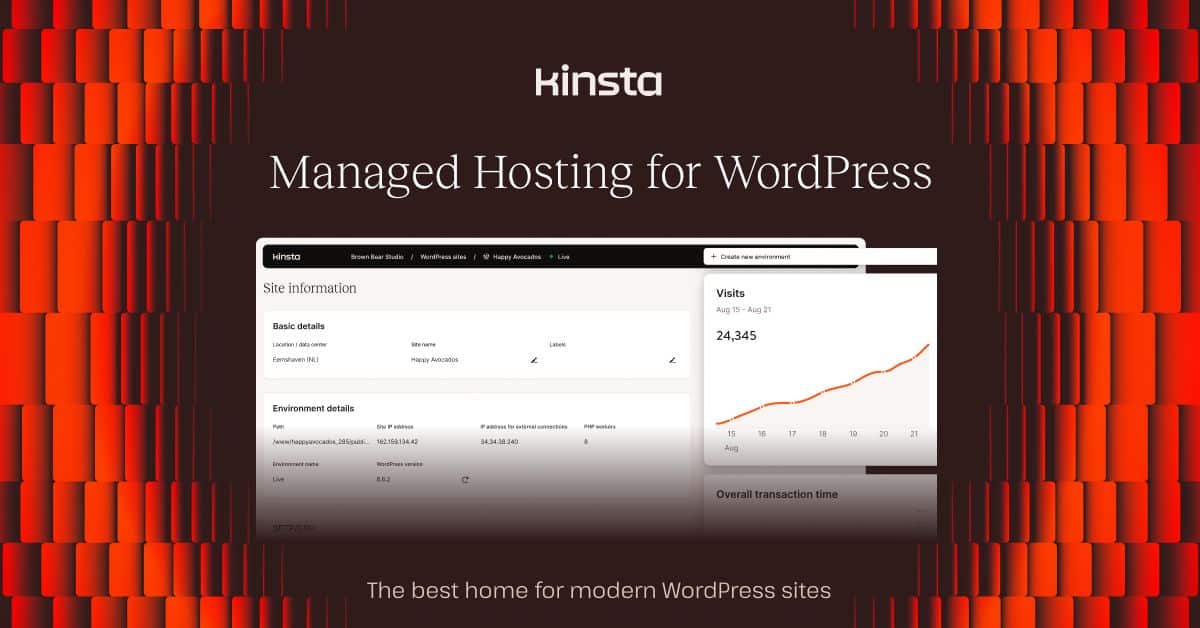
Kinsta runs exclusively on Google Cloud Platform’s premium tier and has built a genuinely impressive WordPress-specific hosting stack around it. Container-based isolation, edge caching through Cloudflare, and a custom dashboard that surfaces the metrics WordPress site owners actually care about. It’s also expensive, and you need to decide if the performance premium justifies the cost for your specific use case.
Pricing Structure:
- Starter: $35/month (1 site, 10GB SSD, 25,000 visits)
- Pro: $70/month (2 sites, 20GB SSD, 50,000 visits)
- Business 1: $115/month (5 sites, 30GB SSD, 100,000 visits)
- Business 2: $225/month (10 sites, 40GB SSD, 250,000 visits)
Annual billing saves roughly 2 months. All plans include CDN, daily backups, staging, and support.
What’s Actually Good:
- TTFB performance was the best we measured across all providers tested. Google Cloud’s premium tier routing combined with Kinsta’s edge caching makes a real, measurable difference.
- The MyKinsta dashboard is excellent — clean, fast, and surfaces useful data like PHP worker usage and cache hit ratios without requiring you to dig through server logs
- DevKinsta (local development tool) lets you build and test locally with a near-identical environment to production
- Support is staffed by people who actually understand WordPress internals, not generic hosting agents. When I reported a PHP memory issue, the agent identified it as a specific plugin conflict within minutes.
- Container-based isolation means another customer’s traffic spike doesn’t affect your site
What’s Not Great:
- The visit-based pricing model is Kinsta’s biggest weakness. “25,000 visits” on the Starter plan sounds reasonable until you realize bot traffic, crawlers, and your own admin visits all count. A moderately popular blog can burn through that limit from Google bot crawling alone. Overage charges apply, and they’re not cheap.
- WordPress only. No Laravel, no static sites, no custom applications. If you need to host anything alongside WordPress, you need a second hosting provider.
- No email hosting — same as Cloudways, you’re adding a separate service.
- $35/month for a single WordPress site is a hard sell when Cloudways on DigitalOcean hosts WordPress for $14/month with similar (though not identical) performance. The premium is real, but so is the price difference.
- Plugin restrictions exist. Certain caching and security plugins are banned because they conflict with Kinsta’s server-level implementations. This is technically reasonable but can be frustrating if your workflow depends on a specific plugin.
Get Started with Kinsta — Worth it for revenue-generating WordPress sites where milliseconds matter. Overkill for a personal blog.
SiteGround Cloud — Best Managed Cloud with Familiar Tools
Best for agencies and businesses that want managed cloud without learning new tools
SiteGround’s cloud hosting runs on Google Cloud Platform infrastructure with their custom Site Tools panel (they moved away from cPanel in 2019). Auto-scaling, daily backups, and proactive monitoring are all included. The catch is the entry price.
Pricing Structure:
- Jump Start: $100/month (4GB RAM, 40GB SSD, unmetered traffic)
- Business: $200/month (8GB RAM, 80GB SSD)
- Business Plus: $300/month (12GB RAM, 120GB SSD)
- Super Power: $400/month (16GB RAM, 160GB SSD)
These prices are consistent — no intro/renewal bait-and-switch. But $100/month as the starting point puts SiteGround Cloud in a different league than the other options on this list.
What’s Actually Good:
- Auto-scaling actually works as advertised. CPU and RAM scale up during traffic spikes and back down afterward, and the billing adjusts accordingly
- Their SuperCacher technology (a multi-layer caching system) delivers strong performance for dynamic sites
- Site Tools is well-designed and genuinely easier to navigate than raw server management
- White-label options make this attractive for agencies reselling hosting
- SiteGround’s support has consistently been among the best in the industry — phone, chat, and ticket support staffed by people who can actually troubleshoot
What’s Not Great:
- $100/month is a steep entry point. For that money, you could run a Cloudways server on AWS with 8GB RAM and still have budget left over. SiteGround Cloud only makes sense if you specifically value their management layer and support quality enough to pay the premium.
- 40GB SSD on the entry plan is tight. Media-heavy sites will hit that limit quickly, and storage upgrades aren’t cheap.
- “Unmetered traffic” still has limits — SiteGround’s terms of service include fair use provisions, and they’ll throttle or contact you if usage is excessive.
- No Windows server option, which limits some enterprise use cases.
- The move away from cPanel means existing cPanel knowledge doesn’t transfer. Site Tools is good, but it’s proprietary — your team needs to learn a new interface.
Visit SiteGround — Only consider the cloud plans if your budget supports the $100/month entry point. Their shared hosting plans are a better fit for smaller sites.
DigitalOcean — Best Developer-Friendly Cloud VPS
Best for developers who want clean infrastructure and don’t need hand-holding
DigitalOcean is the anti-AWS. Simple pricing, excellent documentation, and a clean interface. You get a Linux box (a “Droplet”) with root access, and what you build on it is your business. This is unmanaged hosting — there’s no WordPress installer, no cPanel, no support agent who’ll help you configure PHP. You’re the sysadmin.
Pricing Structure:
- Basic (Regular): $4/month (1GB RAM, 25GB SSD, 1TB transfer)
- Basic (Premium): $6/month (1GB RAM, 50GB SSD, 2TB transfer, NVMe)
- General Purpose: Starting at $8/month (dedicated CPU)
- CPU-Optimized: Starting at $18/month
- Memory-Optimized: Starting at $24/month
No intro pricing games. The price listed is the price you pay, month after month. Managed databases (MySQL, PostgreSQL, Redis) are available as add-ons.
What’s Actually Good:
- The documentation and tutorial library is genuinely best-in-class. Nearly every common setup scenario has a well-written, up-to-date guide
- API-first design means everything you can do in the dashboard, you can automate
- Managed Kubernetes offering is simpler than GKE or EKS for small to mid-size deployments
- Transparent, predictable pricing with no bandwidth surprises within your transfer limit
- The community and marketplace of 1-click apps covers most common stacks
- Spaces (S3-compatible object storage) and managed databases round out the platform nicely
What’s Not Great:
- This is unmanaged hosting. If Nginx breaks at 3am, you’re fixing it yourself. If your WordPress site gets hacked, DigitalOcean will tell you to restore from backup — they won’t clean the malware for you. For non-technical users, this is a dealbreaker.
- No free migration. You’re setting everything up from scratch or scripting your own migration.
- The $4/month Droplet is fine for development and testing but underpowered for production WordPress. Budget at least the $6/month Premium droplet with NVMe storage, and ideally the $12/month tier for any site with traffic.
- Fewer global regions than AWS or GCP. 15 data centers is adequate for most use cases but limiting if you need presence in specific geographies.
- Backup add-ons cost 20% of your Droplet price monthly. A $6/month Droplet with weekly backups becomes $7.20/month — not terrible, but it adds up across multiple Droplets.
Get Started with DigitalOcean — New accounts get $200 in free credits to experiment with.
Use Case Recommendations
Best for WordPress Sites
Kinsta if performance is your top priority and you can justify the price. Their Google Cloud premium tier network and WordPress-optimized stack deliver the fastest load times we tested.
Cloudways for the best balance of WordPress performance and value. Pick the DigitalOcean or Vultr backend for cost efficiency, or AWS/GCP if you need their specific network advantages.
For budget-conscious WordPress users, check our Best WordPress Hosting 2026: Top 6 Providers Tested & Compared guide, which covers providers from $2.99/month to premium managed options.
Best for Beginners / First Cloud Hosting
Hostinger Cloud Startup is the most beginner-friendly option that’s still genuinely cloud-based. The hPanel control panel walks you through setup, and the included staging environment lets you experiment without breaking your live site.
Cloudways is a good step up if you’re comfortable with slightly more technical interfaces. Their platform is well-documented and the learning curve is manageable.
Avoid AWS, GCP, and DigitalOcean if you don’t have server administration experience. You’ll spend more time fighting infrastructure than building your site.
Best for High-Traffic Sites
Google Cloud Platform for sites that need true auto-scaling with no resource ceiling. Their load balancing and premium network handle traffic spikes that would overwhelm fixed-resource hosts.
Cloudways on AWS gives you AWS infrastructure with a managed layer, which is a practical middle ground for high-traffic sites that don’t have a dedicated DevOps team.
Best for Developers
DigitalOcean for the cleanest developer experience — excellent API, straightforward Kubernetes, and documentation that respects your intelligence.
Google Cloud Platform if you need the broader toolkit (BigQuery, Cloud Functions, ML APIs) and your team can handle the complexity.
For JavaScript applications, see our best Node.js hosting guide comparison, and for Python/Django applications, our best Django hosting guide covers the managed cloud options in detail.
Best for Agencies
Cloudways for multi-client management. Their team collaboration features, server cloning, and ability to run different clients on different cloud providers from one dashboard is purpose-built for agency workflows.
SiteGround Cloud if your clients expect phone support and you want white-label options — but only if the $100/month minimum per cloud instance fits your margins.
Best Budget Cloud Option
Hostinger Cloud Startup at $9.99/month (realistically $19.99/month after renewal) delivers the most resources per dollar: 3GB RAM, 200GB SSD, LiteSpeed server. The performance-to-price ratio is hard to beat.
AWS Lightsail at $3.50/month is the cheapest entry point, but the 512MB plan is only suitable for very low-traffic sites or development environments.
For even more budget options, explore our Best Cheap Hosting 2026: 7 Budget Providers Under $3/Month Tested guide.
Best for E-commerce
Kinsta for WooCommerce stores — their PHP worker configuration handles concurrent checkout sessions better than most WordPress hosts, and the Google Cloud premium network means fast page loads worldwide.
Cloudways for non-WordPress e-commerce (Magento, Laravel-based shops) since Kinsta is WordPress-only.
Best with Free Migration
Cloudways handles complex migrations including custom server configurations. Their migration plugin for WordPress works well, and their team assists with non-WordPress applications.
Hostinger provides free migrations for their cloud plans, though complex or multi-site migrations may require back-and-forth with their team.
For more migration options, check our Best Hosting with Free Migration 2026: 6 Providers That Move Your Site for Free comparison. And remember: nameserver propagation can take up to 48 hours regardless of your provider, so plan your migration window accordingly and keep both servers running during the transition.
Pricing Comparison Deep Dive
Entry-Level Cloud Hosting (Under $20/month)
| Provider | Plan | Monthly Price | Renewal Price | RAM | Storage | Bandwidth |
|---|---|---|---|---|---|---|
| AWS Lightsail | 512MB | $3.50 | $3.50 | 512MB | 20GB SSD | 1TB |
| DigitalOcean | Basic | $4 | $4 | 1GB | 25GB SSD | 1TB |
| Hostinger | Cloud Startup | $9.99 | $19.99 | 3GB | 200GB SSD | ”Unlimited”* |
| Cloudways | DO Basic | $14 | $14 | 1GB | 25GB SSD | 1TB |
*Fair use policy applies
Mid-Range Cloud Hosting ($20-$50/month)
| Provider | Plan | Monthly Price | RAM | Storage | Notes |
|---|---|---|---|---|---|
| AWS Lightsail | 4GB | $20 | 4GB | 80GB SSD | No auto-scaling |
| Google Cloud | e2-micro | ~$24 | 1GB | 10GB | + bandwidth + DB costs |
| Hostinger | Cloud Professional | $18.99 (renews $37.99) | 6GB | 250GB SSD | Best value at renewal price |
| Kinsta | Starter | $35 | Managed | 10GB SSD | 25k visit limit |
Premium Cloud Hosting ($50/month+)
| Provider | Plan | Monthly Price | RAM | Storage | Key Trade-off |
|---|---|---|---|---|---|
| Kinsta | Pro | $70 | Managed | 20GB SSD | WordPress only, 50k visit cap |
| Cloudways | AWS Large | ~$84 | 8GB | 160GB SSD | Managed AWS at premium |
| Google Cloud | e2-standard-2 | ~$97 | 8GB | 10GB | Add-on costs stack up |
| SiteGround | Jump Start | $100 | 4GB | 40GB SSD | High entry, small storage |
Hidden Costs That Will Bite You
AWS and Google Cloud charge separately for bandwidth egress, managed databases, load balancers, and monitoring. That $24/month GCP instance becomes $80+/month once you add Cloud SQL and a load balancer. Budget for the full stack, not just the compute instance.
Renewal pricing is the oldest trick in hosting. Hostinger’s Cloud Startup doubles from $9.99 to $19.99. At least Cloudways, DigitalOcean, AWS Lightsail, and Kinsta charge the same price month after month — what you see is what you keep paying.
Visit-based overages on Kinsta can surprise you. If your 25,000-visit plan gets hit by a bot crawl or your site goes viral, you’re paying overage fees before you can react.
Backup storage isn’t always included. DigitalOcean charges 20% of your Droplet price. AWS Lightsail includes snapshots but charges for additional ones. Always check what’s included before you assume your data is protected.
AWS vs Google Cloud vs Azure: The Big Three
For context, here’s how the major platforms compare when used specifically for web hosting:
Amazon Web Services (AWS)
Realistically: The largest service catalog and global infrastructure, but also the most complex billing and management experience. EC2 is incredibly flexible; it’s also incredibly easy to misconfigure. Most web hosting use cases don’t need full AWS — Lightsail or a managed provider on top of AWS is usually the smarter choice.
Google Cloud Platform (GCP)
Realistically: The best network performance of the three, strong developer tools, and aggressive pricing (sustained use discounts are automatic). But smaller ecosystem, fewer third-party integrations, and their history of killing products makes some teams nervous about long-term commitment.
Microsoft Azure
Realistically: The natural choice if you’re already a Microsoft shop (Active Directory, .NET, SQL Server). The portal is clunky, Linux support is an afterthought, and their pricing is the least transparent of the three. Skip it for general web hosting unless you have specific Microsoft dependencies.
For most website hosting needs, managed alternatives like Cloudways provide the meaningful performance benefits of these platforms without requiring you to become a certified cloud architect.
Cloud Hosting vs Traditional Hosting
Scalability: Cloud hosting can add resources (sometimes automatically) when traffic spikes. Shared hosting has fixed limits — hit them and your site slows or goes offline. But “auto-scaling” isn’t magic: you need to configure scaling policies on raw platforms, and managed hosts vary in how they handle it.
Reliability: Multi-server cloud infrastructure means better redundancy than a single shared server. But “cloud” doesn’t automatically mean “redundant” — check whether your provider actually distributes your workload or just runs it on a single virtual machine that happens to be in a cloud data center.
Performance: The difference between a Nginx or LiteSpeed cloud server with NVMe storage and Redis caching versus an Apache shared host is dramatic. But the performance gap between cloud providers themselves is smaller than marketing would suggest.
Cost: Cloud hosting costs 2-5x more than shared hosting. The question is whether your site’s performance and reliability requirements justify the cost. A personal blog doesn’t need cloud hosting. An e-commerce store processing orders probably does.
Management: Managed cloud hosts (Cloudways, Kinsta, SiteGround) handle the server ops. Unmanaged platforms (AWS, GCP, DigitalOcean) give you full control and full responsibility. Know which one you’re signing up for.
For a complete comparison of all hosting types, see our Best Web Hosting Services in 2026: Complete Comparison Guide. If you’re specifically choosing between shared hosting and cloud, our shared vs cloud hosting comparison walks through the real performance and pricing differences.
Security Features Worth Evaluating
Not all cloud security is created equal. Here’s what to actually check:
DDoS Protection: Most cloud providers include basic DDoS mitigation. Cloudflare integration (included with Kinsta and available on Cloudways) provides more robust protection. AWS Shield Advanced and Google Cloud Armor are enterprise-grade but cost extra.
Web Application Firewall (WAF): Check whether it’s included or an add-on. Cloudways includes a basic WAF. AWS WAF is a separate, billed service. Kinsta includes Cloudflare’s WAF. Free WAFs vary widely in effectiveness.
Backups: “Daily backups” means nothing if restoring takes 6 hours during an emergency. Test the restore process before you need it. Check retention periods — some hosts keep 14 days, others keep 30, and some keep only the most recent.
Isolation: Container-based isolation (Kinsta, Cloudways) provides better security boundaries than simple user-level separation on shared hosts. Full VPCs on AWS and GCP give you network-level isolation, but you need to configure them correctly.
SSL/TLS: Every host on this list includes free SSL via Let’s Encrypt or Cloudflare. This is table stakes, not a differentiator.
Performance Optimization Tips
Choose the Right Region: This matters more than most people realize. A server in Virginia serving users in Sydney adds 200+ ms of latency that no amount of optimization will fix. Pick the data center closest to your primary audience, and use a CDN for everyone else.
Enable Object Caching: Redis or Memcached for database query caching makes a substantial difference for dynamic sites. Check whether your plan includes it — many entry-level plans don’t, and the difference between cached and uncached WordPress database queries is significant.
Understand Your Caching Layers: Page caching (Varnish, LiteSpeed Cache), object caching (Redis), opcode caching (OPcache), and CDN edge caching all serve different purposes. The best-performing setups use all four layers. Know what your host provides and what you need to configure yourself.
Database Tuning: If you have access to MySQL/MariaDB configuration (you do on VPS and cloud, usually not on managed hosts), tuning innodb_buffer_pool_size to 70-80% of available RAM for database-heavy sites makes a meaningful difference.
Monitor Before Optimizing: Don’t guess at bottlenecks. Use your host’s monitoring tools (or New Relic, or even just top and slow query log) to identify whether you’re CPU-bound, memory-bound, IO-bound, or network-bound before throwing optimization at the wall.
Migration Strategies
Plan for DNS propagation: After updating nameservers or A records, propagation takes anywhere from a few minutes to 48 hours depending on TTL settings and DNS providers. Lower your TTL to 300 seconds at least 24 hours before migration to speed this up.
Keep both servers running: During migration, maintain the old host until you’ve verified everything works on the new one. “I’ll just switch the DNS and cancel the old host” is how you end up with a broken site and no fallback at 11pm.
Database migration: For MySQL/MariaDB, mysqldump and import is straightforward for databases under a few GB. For larger databases or zero-downtime requirements, look into replication-based migration. Test the import on the new server and verify row counts and data integrity before switching DNS.
Test with hosts file: Before changing public DNS, edit your local hosts file to point your domain at the new server’s IP. This lets you test everything — SSL, forms, dynamic content — without affecting live visitors.
Post-migration monitoring: Watch error logs, uptime monitors, and page load times closely for the first week. Issues often surface gradually as cached content expires and all requests hit the new server.
For detailed migration guidance, check our Best Hosting with Free Migration 2026: 6 Providers That Move Your Site for Free article.
Final Recommendation
Cloudways is the best choice for most people moving to cloud hosting. It eliminates the ops complexity of raw cloud platforms while giving you real cloud infrastructure from your choice of provider. The pricing is transparent, the performance is strong, and you can scale from a $14/month DigitalOcean droplet to a dedicated AWS instance without rebuilding anything. It’s not the cheapest, and it’s not the fastest — but it’s the best balance of performance, usability, and value.
Google Cloud Platform makes sense if you have DevOps capability and need the broader platform (Kubernetes, BigQuery, ML APIs). Don’t choose GCP for simple web hosting — the overhead isn’t worth it unless you’re using the ecosystem.
Hostinger Cloud Startup is the right call if budget is the primary constraint and you want genuine cloud features. Accept the $19.99/month renewal price as your real cost, and you’re getting excellent value for a LiteSpeed-powered cloud server with 3GB RAM.
Kinsta earns its premium for WordPress sites where speed directly impacts revenue — e-commerce stores, high-traffic publishers, sites where a 100ms improvement in load time measurably affects conversion rates. For everything else, the price premium over Cloudways is hard to justify.
Skip SiteGround Cloud unless your budget genuinely supports $100+/month and you specifically value their support quality and auto-scaling implementation. It’s a good product at a price point that only makes sense for established businesses.
DigitalOcean is the best unmanaged option for developers who want full control and clean infrastructure. Just be honest about whether you want to be your own sysadmin — the freedom comes with real responsibility.
Frequently Asked Questions
What’s the difference between cloud hosting and VPS hosting?
The line has blurred significantly. Traditional VPS runs on a single physical server — if that hardware fails, your VPS goes down with it. Cloud hosting theoretically distributes your workload across multiple physical machines for better redundancy. In practice, many “cloud” plans are essentially VPS instances running in a cloud data center, with the actual redundancy depending on the provider’s implementation. Ask your provider specifically: if the physical node hosting my instance fails, what happens? Automatic failover to another node, or restoration from backup?
Do I need technical knowledge to use cloud hosting?
Depends entirely on which type. Managed hosts (Cloudways, Kinsta, SiteGround Cloud, Hostinger Cloud) handle server administration — you manage your sites through a dashboard, similar to shared hosting but with better performance. Unmanaged platforms (AWS, GCP, DigitalOcean) require you to configure, secure, and maintain the server yourself. If you’ve never configured a firewall, installed PHP extensions, or tuned MySQL, stick with managed hosting.
How much does cloud hosting cost compared to shared hosting?
Realistically, $10-$35/month for managed cloud hosting versus $3-$5/month for shared hosting. The performance difference is substantial — shared hosting puts hundreds of sites on one server, while cloud hosting gives you dedicated resources. Whether the 3-7x cost increase is worth it depends on your site’s traffic and revenue. A site making $500/month in revenue? Cloud hosting pays for itself in faster load times and better uptime. A hobby blog with 100 visitors/day? Shared hosting is fine.
Can I host multiple websites on cloud hosting?
Yes, but the mechanics vary. Cloudways lets you install unlimited applications on a single server (limited by server resources, not arbitrary caps). Kinsta charges per site in their plan tiers. On DigitalOcean or AWS, you can host as many sites as your server resources support — you’re managing the server, so it’s up to you. Keep in mind that hosting 10 sites on a 1GB RAM server is technically possible but performance will be poor.
What happens if my website gets a traffic spike?
On managed hosts like Cloudways and Kinsta, the platform handles scaling to some degree — Cloudways lets you resize your server (with brief downtime), while Kinsta’s container infrastructure absorbs moderate spikes. On GCP and AWS, auto-scaling can add instances automatically, but you need to configure scaling policies and load balancers in advance. On fixed-resource platforms like Lightsail and basic DigitalOcean Droplets, traffic spikes just mean slower performance until the spike passes. No cloud host magically handles unlimited traffic without either configuration or cost.
Is cloud hosting more secure than shared hosting?
Generally yes, because resource isolation is better. On shared hosting, a compromised neighbor site can potentially access your files through privilege escalation vulnerabilities. Cloud hosting provides stronger isolation through containers or virtual machines. But “more secure” doesn’t mean “secure” — you still need to keep your applications updated, use strong passwords, configure firewalls properly, and maintain backups. The hosting layer is just one part of your security posture.
How do I migrate from my current host to cloud hosting?
Most managed cloud hosts offer free migration assistance — Cloudways, Hostinger, and SiteGround will handle standard WordPress and PHP site transfers. For custom applications or complex setups, expect to handle some of the migration yourself or pay for premium migration support. Budget 24-72 hours for the full process including DNS propagation, and keep your old host active during the transition so you have a fallback if anything goes wrong.
Recommended Tools & Resources
If you’re exploring this topic further, these are the tools and products we regularly come back to:
Some links on this page are affiliate links. If you click one and purchase or sign up for a service, we earn a commission at no extra cost to you. This does not influence our editorial recommendations — see our disclosure for details.