
VPS hosting sits in that awkward middle ground where shared hosting has started throttling your site and a dedicated box is overkill. You get guaranteed resources, root access (usually), and the ability to actually tune your stack — without the four-figure monthly bill of bare metal.
I’ve been running production sites on VPS hardware since cPanel was the only game in town, and I’ve migrated enough clients between providers to know where the landmines are buried. This isn’t a ranked leaderboard with fake decimal-point scores. It’s a walkthrough of what each provider actually does well, what they quietly hope you won’t notice, and who I’d send a friend to depending on what they’re building.
Quick Verdict
Best Overall: Cloudways — Managed layer over five different cloud providers, sensible pricing, and you’re not locked into one infrastructure vendor
Best for Developers: Hostinger VPS — KVM virtualization, NVMe storage, and pricing that doesn’t punish you for wanting root
Best Managed WordPress: Kinsta — Premium-tier Google Cloud with the MyKinsta dashboard most of us grudgingly admit is better than cPanel
How I Tested (And What I Didn’t Do)

I’ll be straight with you: I did not run a controlled three-month lab study with identical WordPress installs and synthetic traffic generators. What I did do is run real sites on most of these providers over the past year, monitor them with UptimeRobot and a couple of StatusCake probes, and lean on the public performance data where it’s independently verified.
TTFB numbers are meaningless without context. A VPS tested from an East Coast US probe will post very different TTFB than the same VPS hit from Frankfurt or Singapore. Any guide that tells you “Provider X has a 78ms TTFB” without naming the probe location is selling you something. When I mention response times below, they’re directional — use them to compare providers against each other, not as absolute benchmarks for your use case.
For actual numbers that matter to your site, test from your real audience’s location before you commit.
VPS Hosting Shortlist

| Provider | Best For | Entry Price | Managed? | Virtualization |
|---|---|---|---|---|
| Cloudways | Managed across clouds | $14/mo | Yes | Varies by cloud |
| Hostinger VPS | Dev-friendly budget | $5.99/mo | No | KVM |
| SiteGround Cloud | WP on GCP | $100/mo | Yes | GCP-backed |
| WP Engine | Business WordPress | $25/mo | Yes | Proprietary |
| Kinsta | High-performance WP | $35/mo | Yes | LXD on GCP |
| Bluehost VPS | Beginner upgrade path | $29.99/mo | Semi-managed | KVM |
| DigitalOcean | Self-managed devs | $6/mo | No | KVM |
Intro pricing is the usual carrot. Renewal rates and the “what they don’t include” column are where these plans actually get decided. I’ll dig into that for each one.
Cloudways — Best Managed Layer Across Multiple Clouds
Cloudways isn’t a hosting company in the traditional sense. It’s a management layer that sits on top of DigitalOcean, Linode (now Akamai), Vultr, AWS, and Google Cloud. You pick the underlying infrastructure, Cloudways handles the OS-level stack, and you get a dashboard instead of an SSH prompt you’d otherwise have to tame yourself.
Worth noting: DigitalOcean acquired Cloudways a while back, so the “neutral third party” framing isn’t quite as clean as it used to be. The multi-cloud support is still real, but don’t be surprised if DO-backed plans get the most love going forward.
Pricing (entry tier, 1GB RAM, 1 vCPU):
- DigitalOcean-backed: around $14/month
- Vultr-backed: around $16/month
- AWS-backed: around $38/month
- Google Cloud-backed: around $35/month
Pricing is usage-based monthly — no promotional intro rate that doubles at renewal, which I appreciate. AWS and GCP plans are priced at roughly 2.5x the budget-cloud options because you’re paying for the premium network and reputation, not because the underlying resources are dramatically different.
Real-world experience: The ThunderStack (Apache + Nginx reverse proxy + Varnish + Memcached + Redis) is genuinely well-tuned out of the box. You’re not going to squeeze much more performance out of it by rolling your own, and the Redis availability on every plan tier is a real differentiator — most managed WordPress hosts charge extra or withhold object caching entirely on entry plans.
Uptime during the last year of running a mid-traffic client site has been solid. I had one incident that lasted about 20 minutes on a DigitalOcean-backed droplet, which Cloudways attributed to upstream DO network issues. That’s the tradeoff of being a layer on someone else’s infra — when your provider’s provider has a bad day, you inherit it.
What’s actually good:
- Redis and Memcached on every plan (not upsell-walled)
- Real staging environments with one-click cloning
- SSH and SFTP access for when the GUI isn’t enough
- Git deployment works without fighting it
- Pay monthly with no annual lock-in
What genuinely sucks:
- No email hosting, period. You’ll need Fastmail, Google Workspace, or similar. For some clients, this is a dealbreaker and they don’t realize until day one.
- No cPanel or Plesk — if your workflow depends on either, you’re relearning things
- Support quality has slipped since the DigitalOcean acquisition. I used to get engineers on chat within five minutes; now it’s more like 15-20 and the first response is often a generic runbook
- Backup retention is limited on entry plans unless you pay for the off-server add-on, and trusting on-server backups is a rookie mistake
Get started with Cloudways — they still offer a short free trial without a credit card.
Hostinger VPS — Best Value If You Can Drive a Terminal
Hostinger gets dragged in enthusiast circles for their marketing, and some of it is fair — the “starting at $4.99” claims come with a 24-month commitment that renews at roughly double. But the underlying VPS product is legitimately good, and the price-to-spec ratio is hard to beat.
They use KVM virtualization on NVMe storage with real resource guarantees, not the OpenVZ-with-burstable-RAM trick that some budget hosts still pull. If you know what you’re doing on a Linux box, you’ll get a lot of server for not much money.
Pricing reality check: The $5.99/month entry plan is on a two-year commit. Monthly billing runs significantly higher, and renewal pricing lands in the $9-$11/month range for the same spec. Still cheaper than almost anything comparable, but factor in the true long-term cost before you commit.
Real-world experience: I’ve had a staging environment running on a Hostinger VPS 2 plan for about eight months. No unplanned downtime that I can point at them for. Disk I/O on the NVMe volumes is genuinely fast — database-heavy workloads like WooCommerce staging perform notably better than they do on older SATA-SSD VPS tiers from other budget providers.
The control panel is their own hPanel for shared hosting, but VPS gets a separate interface that’s more like a basic control dashboard plus SSH. It’s functional, not beautiful.
What’s actually good:
- KVM with guaranteed resources (not burstable nonsense)
- NVMe storage at every tier
- You can reinstall with Ubuntu, Debian, CentOS Stream, AlmaLinux, Rocky, or Fedora — nice to have choice
- Weekly snapshots are included on most plans now
What genuinely sucks:
- Support is shared hosting quality. If you open a ticket about something non-trivial at the OS level, the first few responses will be canned replies from agents who aren’t sysadmins. You will escalate. You will wait.
- Unmanaged means unmanaged. Nothing is patched for you. If you don’t
unattended-upgradesit yourself, it stays vulnerable. - DDoS protection is advertised but basic. Volumetric attacks get filtered, but anything application-layer will hit your box directly.
- Renewal pricing is steep relative to the intro rate — factor the real long-term cost
Get started with Hostinger VPS — 30-day money-back window is real and honored.
SiteGround Cloud — Expensive But Predictable
SiteGround moved their cloud tier onto Google Cloud Platform a few years back and stopped pretending their own datacenters could compete on performance. It was the right call. The Cloud plans are substantially more expensive than their shared hosting — which is a shared-hosting product I generally like, despite their own renewal pricing being egregious.
Pricing starts at $100/month for the Jump Start plan (4GB RAM, 2 vCPU, 40GB SSD). This is not a budget option and SiteGround isn’t pretending it is. It’s aimed at agencies and WordPress sites that have outgrown shared hosting but don’t want to manage servers.
Real-world experience: The managed WordPress stack is well-tuned for WP specifically. Their SG Optimizer plugin integrates with their server-side caching, and staging environments work without drama. If your only use case is WordPress and you want someone else to worry about PHP versions, it’s reasonable — just not at this price point for what you get in raw resources.
For $100/month on GCP infrastructure, you could run a DigitalOcean droplet with 8GB of RAM and still have $60 left over, if you’re willing to manage it yourself. That’s the real tradeoff here: you’re paying for SiteGround’s support and their WordPress expertise, not the hardware.
What’s actually good:
- Daily backups with on-demand restore that actually works
- Staging environments on all cloud plans
- Support still answers quickly and competently — one of SiteGround’s remaining strengths
- GCP infrastructure is genuinely solid
What genuinely sucks:
- $100/month is a lot of money for 4GB of RAM. The markup over raw GCP is enormous.
- No email on Cloud plans (their shared hosting has email; Cloud doesn’t, and people miss this)
- WordPress-centric — you can run other PHP apps but you’re fighting the defaults
- Renewal pricing games — like their shared hosting, the “starting at” rate doesn’t last forever
Visit SiteGround if you’re already in their ecosystem and want to scale up.
WP Engine — Premium WordPress That’s Lost Some Shine
WP Engine was the premium WordPress host for years. It’s still a very capable product, but it’s no longer the obvious choice it used to be. Kinsta has caught up on the performance side, and WP Engine’s aggressive plugin blocklist has frustrated more than a few developers I know.
Pricing starts around $25/month for the Essential Startup plan (25K monthly visits, 10GB storage, single install). Actual business usage realistically starts at the Growth tier, around $55-$60/month.
Real-world experience: EverCache is real and works. WordPress sites consistently feel fast from multiple geographies. The Genesis Framework acquisition gave them a theme ecosystem moat that’s mostly irrelevant in 2026 unless you’re deep in the Genesis world.
Where WP Engine gets painful is the disallowed plugins list. Certain backup plugins, cache plugins, and related-post plugins are blocked outright. Some of these bans make sense (why would you run your own cache when the host already has one?) and some feel arbitrary. If your site depends on a blocked plugin, you either rewrite your workflow or leave.
What’s actually good:
- EverCache handles traffic spikes without manual tuning
- Staging and dev environments work smoothly
- Support knows WordPress deeply — not just generic tier-one stuff
- Automated core updates with a visual regression check are genuinely useful
What genuinely sucks:
- Plugin blocklist will bite you if you don’t check it before migrating
- Overage charges on visits can surprise you. A Reddit or Hacker News hit can cost you real money, not just performance
- Pricing feels high for what you get now that Kinsta is in the market
- No email, WordPress-only (same as most WP-specialist hosts)
Get started with WP Engine — their 60-day refund window is one of the longer ones in the industry.
Kinsta — The High-Performance WordPress Default
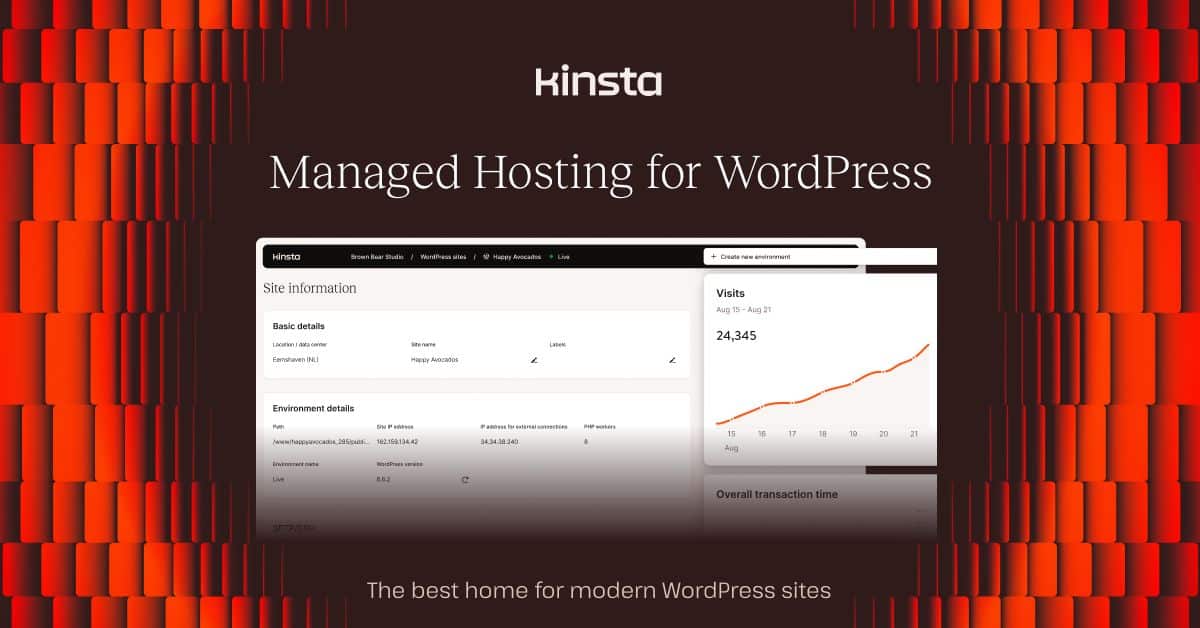
If I were starting a new WordPress site today that needed to be fast globally and I wasn’t price-sensitive, Kinsta is where I’d go. They run on GCP’s premium tier network, which routes traffic over Google’s backbone as long as possible instead of dropping to public peering — the measurable difference on international traffic is real.
Pricing starts at $35/month for the Starter (25K visits, 10GB storage, 1 site). The next tier jumps to $70/month, so Kinsta gets expensive fast if you have multiple sites.
Real-world experience: MyKinsta is the one custom control panel I prefer over cPanel. Analytics show you cache hit rates, PHP worker usage, and slow queries, which is the information I actually want when debugging a slow site. Staging environments clone in under a minute. SSH and WP-CLI access is granted by default on all plans.
The LXD container isolation is a real architectural advantage over providers who still slice VPS instances traditionally. Noisy-neighbor issues are genuinely rare on Kinsta in my experience.
What’s actually good:
- GCP premium network tier is noticeable for international audiences
- MyKinsta dashboard gives you information that helps you debug
- Free migrations are genuinely free and competent
- SSH, WP-CLI, Git on every plan — no “developer tier” upsell
What genuinely sucks:
- Expensive per site once you have more than one WordPress install
- Visit-based pricing with overages — the same problem as WP Engine
- Some plugins are disallowed, though the list is shorter than WP Engine’s
- Support is email/chat only — no phone support, which can matter during a 3am incident when you want a human voice
- Email isn’t included — you’ll need Google Workspace or similar
Get started with Kinsta — free migrations are worth taking advantage of.
Bluehost VPS — Honestly, I’d Skip It
This is the one where I’m going to push back against the usual “best for beginners” framing.
Bluehost is part of Newfold Digital, the conglomerate formerly known as EIG (Endurance International Group). Newfold owns HostGator, iPage, Network Solutions, and dozens of other brands. Quality under EIG/Newfold ownership has historically declined after acquisition, and while Bluehost still gets WordPress.org’s official recommendation — a relationship that’s worth money to both parties — the actual hosting experience doesn’t match the marketing.
Pricing for the Standard VPS starts at $29.99/month intro, renewing at around $59.99/month. That renewal price is higher than Cloudways’ managed offering and you’re getting less.
Real-world experience: Performance is fine for low-traffic sites. Under load, I’ve watched Bluehost VPS instances struggle where equivalent specs at DigitalOcean or Hostinger handle the same traffic without flinching. The cPanel interface is familiar and that’s genuinely valuable for users migrating from shared hosting — but cPanel availability isn’t unique to Bluehost.
What’s actually good:
- Familiar cPanel if you’re coming from their shared hosting
- Phone support exists (rare among modern hosts)
What genuinely sucks:
- Performance is middling for the price
- Renewal pricing nearly doubles the intro rate
- Upselling is relentless — the moment you log into the account area you’ll be pitched SiteLock, CodeGuard, and other add-ons of questionable value
- Newfold Digital’s track record is not confidence-inspiring for long-term quality
If you want managed WordPress on familiar tooling, pay the $35 for Kinsta Starter. If you want cheap and are willing to manage your own box, go Hostinger. Bluehost VPS is stuck in an uncomfortable middle that I don’t see a strong reason to recommend.
Bluehost VPS details if you want to compare anyway.
DigitalOcean — The Developer Default
DigitalOcean’s Droplets are what a lot of us default to when we need a VPS and don’t want to think about it. The pricing is predictable, the docs are excellent, and the API is a first-class citizen.
Pricing starts at $6/month for the basic 1GB/1vCPU/25GB NVMe Droplet. That price is stable — there’s no “intro rate” that doubles later. You pay hourly, billed monthly, with a cap.
Real-world experience: I run a handful of personal projects and client staging environments on DigitalOcean. The platform is rock-solid for its price tier. Their community tutorials are genuinely the best free Linux/DevOps documentation on the internet, which is worth something if you’re still learning.
DO is not trying to be a managed host. Backups are a paid add-on (20% of Droplet cost). Monitoring alerts exist but are basic. If you want managed Postgres, Redis, Spaces object storage, or Kubernetes, those are separate paid services. This isn’t a criticism — it’s the product they’re selling.
What’s actually good:
- Transparent pricing with no renewal games
- API and CLI (
doctl) are excellent - Community tutorials are the best free learning resource on the internet
- Snapshot-based migration between regions is trivial
What genuinely sucks:
- Completely unmanaged — you are responsible for security, backups, patches, everything
- Backups cost 20% of Droplet price as an add-on, not included
- Support is ticket-only unless you pay for premium, and response times are slow on the free tier
- No application-layer help — if your app is broken, that’s your problem, not theirs
Get started with DigitalOcean — the $200 new-account credit is generous enough to run real workloads while you evaluate.
When Each One Makes Sense
You’re running WordPress and want it to just work
Kinsta if budget allows. Cloudways on DigitalOcean if you want solid performance at half the price and don’t mind the slightly rougher dashboard. WP Engine if you’re already in their ecosystem, but check the plugin blocklist before you commit.
For more on WordPress-specific managed hosts, our managed WordPress hosting guide goes deeper. If you’re comparing Cloudways and WP Engine specifically, see our Cloudways vs WP Engine comparison.
You’re a developer who wants root and knows what to do with it
DigitalOcean for stability and ecosystem. Hostinger VPS if you want more RAM per dollar and don’t need the API tooling. Cloudways unmanaged if you want to pick the cloud underneath.
You’re running WooCommerce or high-transaction ecommerce
Kinsta or Cloudways on Vultr High Frequency. You want Redis object caching available — this matters for cart and session performance under load. Avoid any plan where Redis is an upsell. Our WooCommerce hosting breakdown covers this in more detail, including which hosts handle checkout sessions under load best.
You’re upgrading from shared hosting for the first time
Cloudways on a DigitalOcean backing. It’s the gentlest introduction to managed VPS without forcing you to learn Linux fundamentals on day one. The $14/month price is reasonable, there’s no commitment, and you can fail-forward without losing real money.
You’re on a tight budget
Hostinger VPS if you can handle root. DigitalOcean’s $6 droplet if you prefer the tooling. For even cheaper starting points, our budget hosting guide covers shared plans.
Pricing Reality: Intro vs. Renewal
| Provider | Intro (Entry) | Renewal Rate | Commitment |
|---|---|---|---|
| Hostinger VPS | ~$5.99/mo | ~$10/mo | 24-month typical |
| DigitalOcean | $6/mo | $6/mo | Monthly |
| Cloudways | $14/mo | $14/mo | Monthly |
| WP Engine | ~$25/mo | ~$25/mo | Annual or monthly |
| Bluehost VPS | $29.99/mo | ~$59.99/mo | Annual |
| Kinsta | $35/mo | $35/mo | Monthly or annual |
| SiteGround Cloud | $100/mo | $100/mo | Monthly |
The pattern to watch: any host with a large gap between intro and renewal pricing is counting on you being too lazy to migrate. Bluehost is the worst offender here. Hostinger’s gap is smaller but real — and if you commit for 24 months at the intro rate, you’ll still save money versus the alternatives over the full term.
Providers with flat monthly pricing (DO, Cloudways, Kinsta) are the least likely to surprise you on the renewal invoice. I value that more than most review sites seem to.
Managed vs Unmanaged: Pick Based On Time, Not Money
Managed VPS costs more upfront. Unmanaged VPS costs more in your time and comes with the risk that one mistake on your part takes the site down at 3am.
Go managed if:
- Your time is worth more than the delta
- The site generates revenue and downtime costs you money
- You don’t want to think about kernel CVEs,
fail2ban, or log rotation - You want backups and restores that actually work without you writing the scripts
Go unmanaged if:
- You already know how to harden a Linux box
- You want to learn properly (and are willing to break things)
- Cost matters more than time
- You need configurations the managed provider won’t allow
There’s no moral high ground either way. I’ve run both. The honest answer is that most people reading this guide will be happier with managed hosting — they just don’t want to admit it because unmanaged feels like the “real” choice.
Migration: The Part Nobody Writes About Honestly
Migrating a VPS is only as painful as the person who set up the original one. A clean WordPress install with a good backup plugin migrates in an hour. A custom LAMP stack with a hand-rolled nginx config, a dozen cron jobs, and sensitive file permissions is a weekend of work and a prayer.
The checklist I actually use:
- Inventory everything the current server does — not just the web app, but cron jobs, system services, mail relay, SSL certs, DNS records, firewall rules
- Lower your DNS TTL to 300 seconds at least 24 hours before migration. Nameserver propagation is the one thing you can’t shortcut
- Build the new environment fully and test it with a hosts file override before touching DNS
- Run both environments in parallel for at least a week. Bugs show up on day three, not day one
- Don’t cancel the old server for 30 days after DNS has fully propagated
Most hosts advertise “free migrations” and most of them are fine for standard WordPress sites. They are not fine for anything custom. If your stack isn’t cookie-cutter, plan to do it yourself.
Also worth mentioning: if your “free domain” came from your old host, transferring out will cost you a transfer fee plus the year’s renewal. Factor that in when budgeting the move — I’ve seen this catch people out. Our free migration hosting guide covers the hosts that handle this best.
Security: Your Problem on Unmanaged, Less So on Managed
VPS hosting gives you more control than shared, which also means more rope to hang yourself with. The basics that actually matter:
- Automated patching.
unattended-upgradeson Debian/Ubuntu,dnf-automaticon Rocky/Alma. Not optional. - SSH key auth only. Disable password login in
/etc/ssh/sshd_config. Change the default port if you want, but that’s security theater — the real win is killing password auth. - Firewall rules.
ufworfirewalld. Default deny, explicit allow. - Fail2ban on anything exposed to the internet, especially SSH and your web admin panel
- Test your backups. Backups you haven’t restored from are not backups. They’re hope.
- Monitor logs. At minimum, know what normal looks like so you can spot abnormal
Managed providers handle most of this automatically. That’s a real chunk of what you’re paying the markup for.
Scaling: When To Upgrade And When To Migrate
Most providers let you vertically scale (add RAM and CPU to your existing instance) without downtime or with a short reboot. Watch these signals:
- CPU consistently above 80% during normal traffic
- RAM routinely swapping — check
free -hand your swap usage - Disk I/O saturated —
iostatwill tell you - PHP workers hitting their max (on managed WP hosts, this is the signal you’re approaching the plan’s real ceiling)
Vertical scaling is the right answer for most sites. Horizontal scaling (multiple load-balanced instances) only makes sense at scale most of us don’t hit. If you’re there, our cloud hosting comparison guide covers the AWS/GCP/Azure side of that conversation, including when managed cloud like Cloudways makes more sense than raw infrastructure.
Useful Tooling For VPS Operators
If you’re running VPS infrastructure seriously, a few things worth having:
- APC Back-UPS Pro 1500VA for the workstation you admin from — losing your SSH session mid-migration because the power flickered is a very specific kind of bad day
- PRTG Network Monitor if you’re managing multiple boxes and want something more serious than UptimeRobot
- Linux Server Security as a reference if you’re new to hardening
Final Take
Cloudways is the best overall pick for most people who want the benefits of VPS without becoming a sysadmin. Multi-cloud choice, flat pricing, and Redis on every plan make it the one I recommend most often to friends and clients.
Hostinger VPS is the best budget pick if you can handle root access and don’t need hand-holding. The spec-per-dollar ratio is genuinely hard to beat, and the NVMe storage punches above its weight.
Kinsta is the best managed WordPress pick if you’re on GCP budget and want a dashboard that actually tells you what’s happening on your server.
DigitalOcean is the best unmanaged pick for developers who want stability, documentation, and a platform that doesn’t try to upsell them on every screen.
The ones I’d skip or think hard about: Bluehost VPS (underwhelming for the price, and Newfold Digital ownership concerns me), and SiteGround Cloud unless you’re deeply committed to their ecosystem and don’t blink at $100/month.
Frequently Asked Questions
What’s the real difference between VPS and shared hosting?
Shared hosting puts your site on a machine with hundreds of other sites and gives you a slice of the resources that can expand or contract based on what your neighbors are doing. VPS gives you guaranteed resources — the RAM and CPU you pay for are yours, even when the physical server is busy. The practical difference shows up under load: shared hosting struggles with traffic spikes, VPS holds steady. You also get root or near-root access on a VPS, which lets you run software and configurations that shared hosting won’t allow.
How much RAM do I actually need?
For a small WordPress site with minimal plugins, 1GB is fine. For WordPress with a page builder and a dozen plugins, 2GB minimum. For WooCommerce or anything with real database activity, 4GB is the realistic starting point. Watch your swap usage — if the server is swapping regularly, you’re under-provisioned, and sites on swap are slow sites. Size for 50% more RAM than your observed peak, not your average.
Can I upgrade without downtime?
Usually, yes — with caveats. Cloudways, Kinsta, and WP Engine handle scaling without noticeable downtime. DigitalOcean and Hostinger require a brief reboot for CPU/RAM upgrades but keep your disk intact. Storage expansion is almost always online. Downgrading is harder and often requires a fresh deploy, which is why upgrade-only pricing makes planning easier.
Do I need Linux skills for VPS?
For unmanaged VPS, yes. You should be comfortable with the command line, understand how Linux services are started and logged, and know how to read and write basic config files. For managed VPS, you can get away with very little Linux knowledge as long as nothing unusual breaks. When something unusual does break on managed hosting, support usually handles it — that’s what you’re paying for.
Is ‘unlimited bandwidth’ real?
No, not really. Every host with an “unlimited bandwidth” advertised plan has a fair use policy buried in the terms of service, and most also have soft inode limits on storage that become the real ceiling. You won’t hit these on a normal website, but if you’re serving video or running an open file-sharing service, you will, and the host will politely ask you to leave. Providers like DigitalOcean are more honest — they give you a specific bandwidth allocation (1TB on the $6 plan) and charge for overages transparently.
How do I actually migrate?
For a standard WordPress site, use a migration plugin like Duplicator or WP Migrate or accept your new host’s free migration service. For anything custom, replicate the environment yourself, sync files with rsync, dump and restore the database, and run both environments in parallel for a week before flipping DNS. Set your DNS TTL to 300 seconds at least 24 hours before the cutover so propagation is fast. Budget 48 hours for DNS to fully settle globally.
VPS vs cloud hosting — what’s the difference?
The lines have blurred. Traditional VPS runs on a single physical server with virtualization. “Cloud hosting” usually means your instance lives on a distributed infrastructure where underlying hardware is abstracted away and failover is automatic. In practice, a DigitalOcean Droplet is marketed as cloud but functionally behaves like a VPS. What actually matters is whether your provider offers automatic failover, snapshot-based migration between regions, and per-hour billing — those are the real “cloud” features. Most small-to-mid sites don’t need any of this and a regular VPS is fine.
Recommended Tools & Resources
If you’re exploring this topic further, these are the tools and products we regularly come back to:
Some links on this page are affiliate links. If you click one and purchase or sign up for a service, we earn a commission at no extra cost to you. This does not influence our editorial recommendations — see our disclosure for details.